

One panel, every setting
What Is Indus GG?
Indus GG is a Free Fire panel app for Android: a floating panel that opens over your match and puts aim settings, visual options, sensitivity controls, skin customisation and HUD tools in one place, so the setup work happens in a single menu instead of five different screens.
Players search for the indus gg FF panel for a simple reason. Free Fire rewards players who have tuned their controls before the drop, and this panel gathers that tuning into one overlay. Open it from the floating button, switch the menus you want, set your sliders, close it and play. Nothing about the routine is complicated, and that is exactly the point of the tool.
This page is the complete home of the app: what each menu does, how the install works, which phones handle it well, and the honest limits of every setting, tested on real devices by our reviewer.
From lobby to Booyah
How the Panel Works
The panel runs as an overlay. After you install the indus gg app and grant the display permission Android asks for, a small floating button sits at the edge of your screen while Free Fire runs. Tap it and the panel window opens with its menus; tap again and it folds away.
Every change is a setting you control. Sliders set sensitivity values, switches turn visual helpers on or off, and the studio screens hold your skin and layout choices. Change one thing at a time, test it in the training grounds, and keep only what genuinely helps your aim feel steadier.
Inside the panel
Indus GG Features
Aim settings
Aim assist behaviour, aim lock, scope aim and fire aim controls, with a field of view slider for how wide the assist window feels.
ESP visuals
Overlay information such as lines, boxes, names, distance tags and health bars, drawn over the match so you read the fight faster.
Sensitivity studio
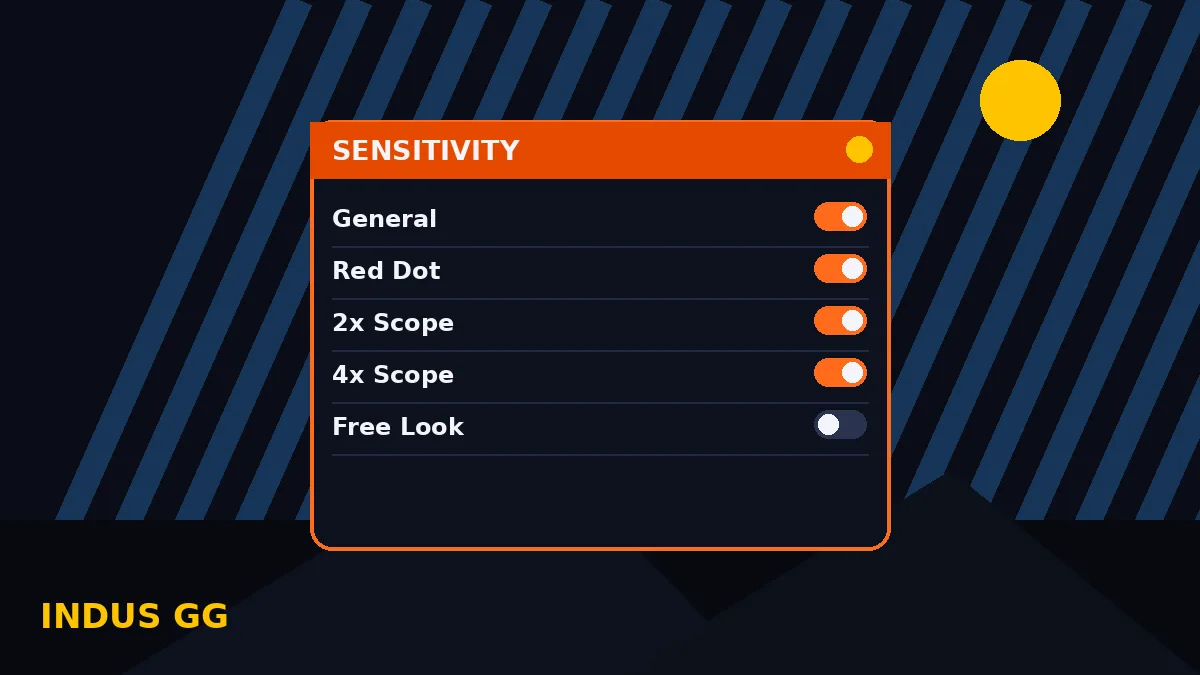
General, red dot, 2x, 4x, sniper and free look sliders in one screen, saved as your own profile per device.
Headshot tuning
Drag and one tap headshot practice settings that pair with your sensitivity profile and fire button placement.
Skin studio
Character and weapon skin customisation screens for the loadout look you want before you queue.
Graphics options
Resolution and smoothness choices aimed at keeping frame rates steady on mid range and budget phones.
Custom HUD
Fire button size and position, crosshair style and control layout tools you can move with your thumbs, not a mouse.
Floating button
One small on screen button opens and closes the whole panel mid match, no app switching, no leaving the game.
The panel, on screen
Indus GG Screenshots
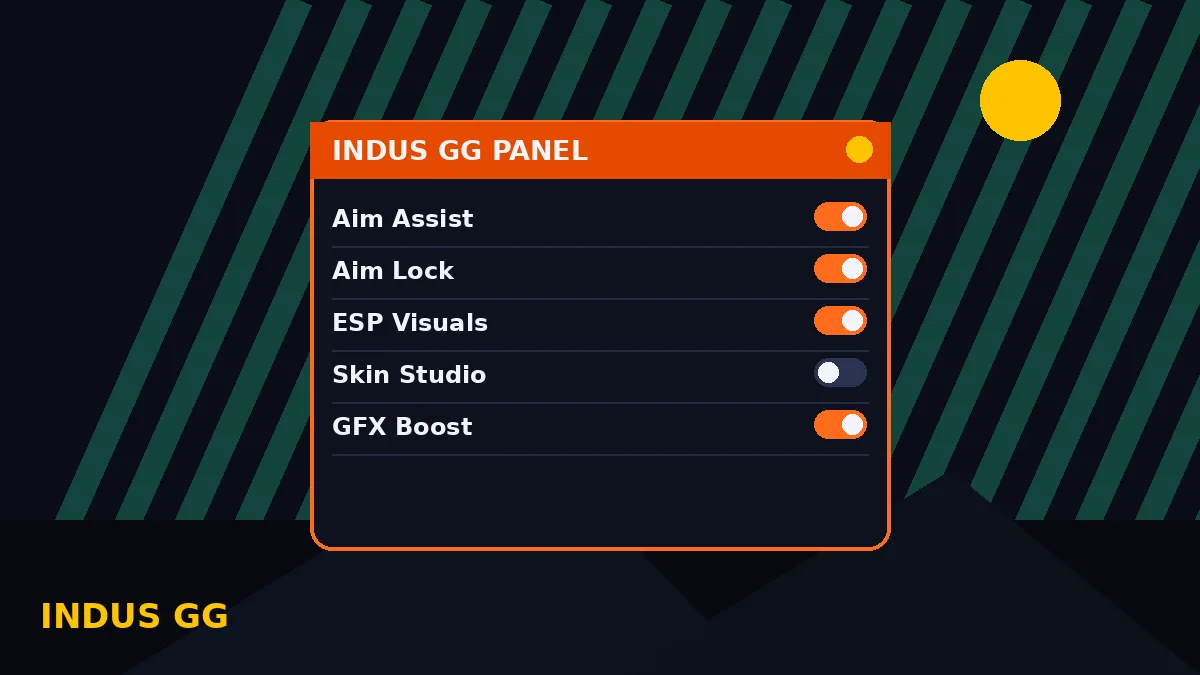
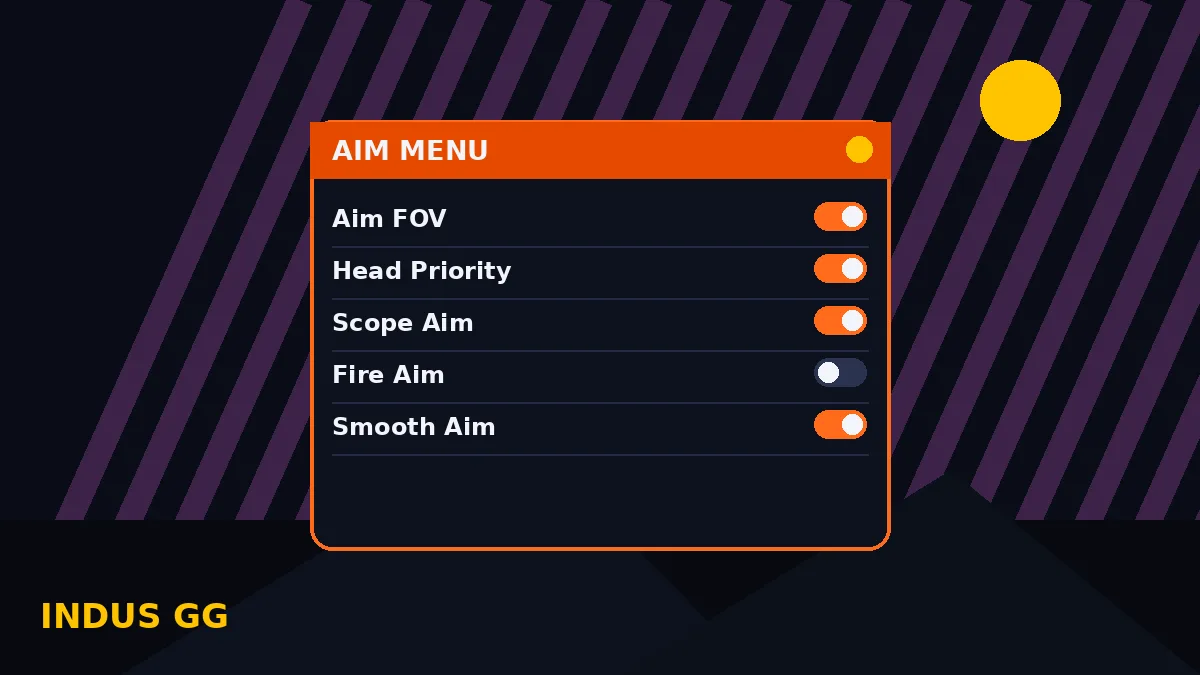
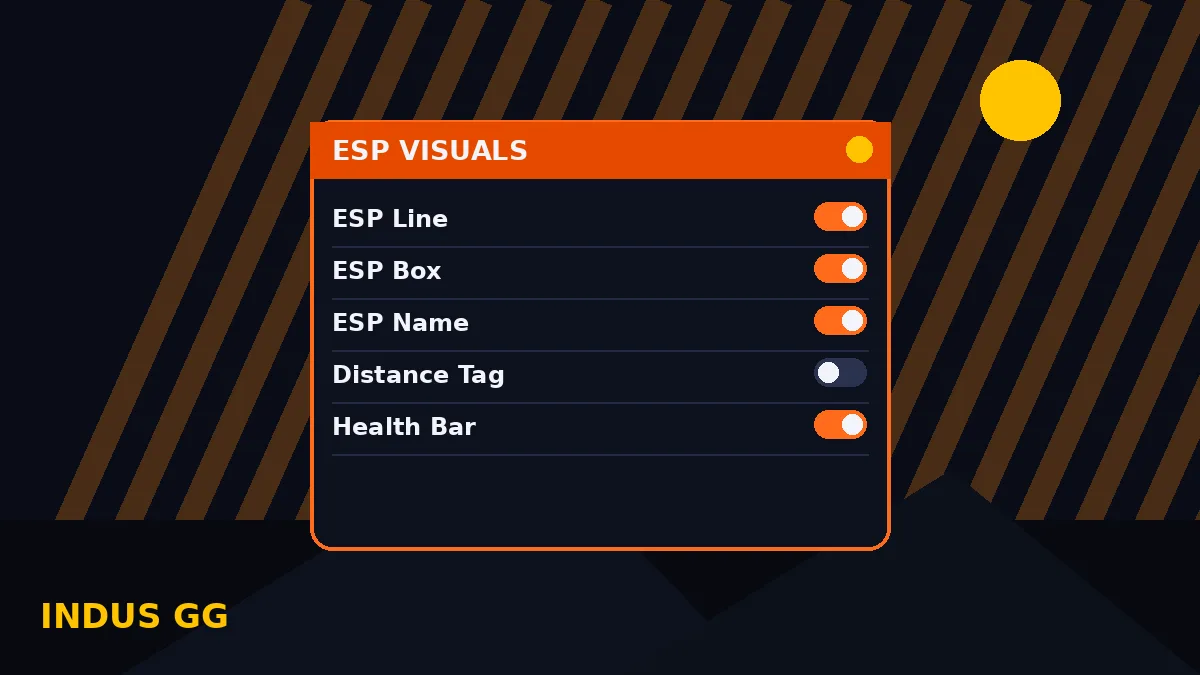
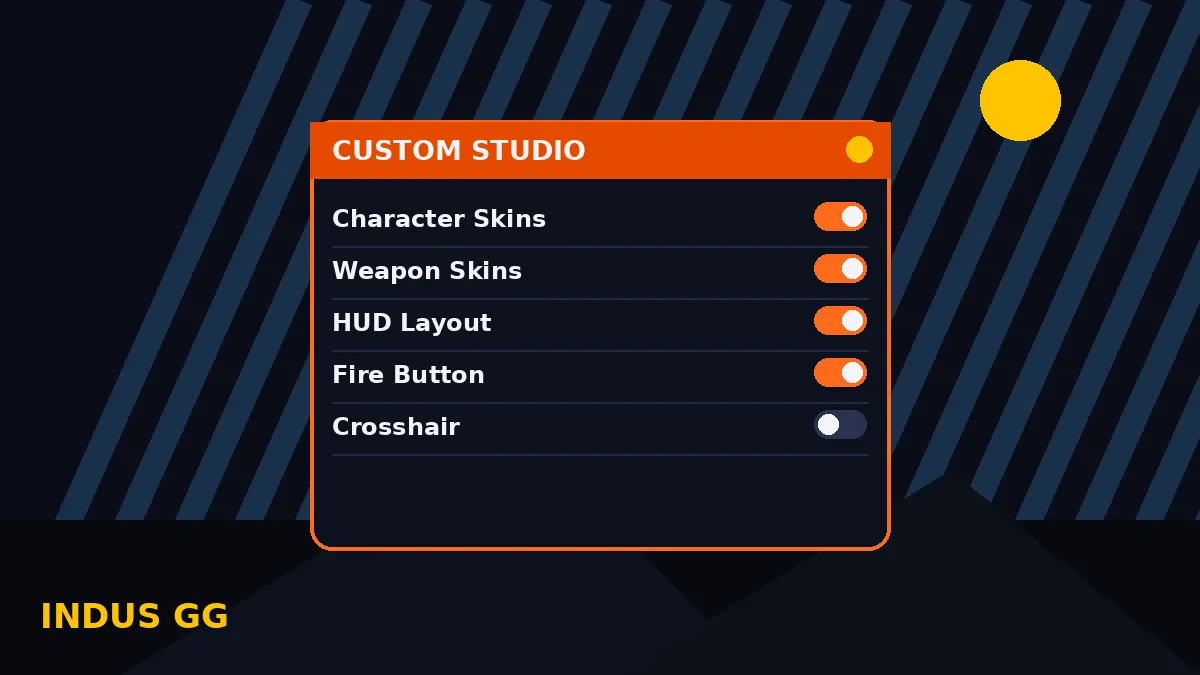
These views show the panel window and its menus as they appear over a match: the main menu, the aim screen, ESP visuals, the sensitivity studio and the custom studio.
Five minutes, start to match
How to Install Indus GG on Android
- Open the download page. Use the button at the top of this page, wait for the short countdown to finish, and tap the download button when it appears.
- Let the file finish. A complete file installs cleanly; a half downloaded one is the most common reason an install refuses to start.
- Allow the install. Tap the file and accept the Android prompt that lets your browser install apps. That prompt is standard for every APK.
- Grant the overlay permission. The panel floats over the game, so Android asks for display over other apps permission. Allow it for this app.
- Open, set, play. Launch the panel, pick your menus, set your sensitivity profile, then start Free Fire from your usual icon.
That is the whole routine. No root, no computer and no account are part of the standard setup, and the same steps work again when you update to a newer build.
Know your menus
The Panel Menus, Explained
The aim menu is where most players spend their first session. Aim assist and aim lock change how your crosshair behaves near a target, scope aim covers scoped weapons, and the field of view slider sets how wide the assist area feels. Small values feel calmer; very wide values can feel jumpy until your thumbs learn them.
The visual menu holds the ESP options: lines that point toward opponents, boxes, name and distance tags, and health bars. The sensitivity studio and custom studio cover the comfort side of the game, your sliders, your skins, your HUD and your fire button. Treat the panel as three toolboxes, aim, information and comfort, and tune one toolbox at a time.
Phones and versions
Device Compatibility
The indus gg panel is built for Android phones running Free Fire and Free Fire MAX. It behaves best on phones with enough free RAM to hold the game and an overlay together, which in practice means most devices from the last several years, including plenty of budget models.
On low end phones, keep the graphics options conservative and close background apps before a session. The panel itself is light; the game plus the overlay plus a screen recorder is where older phones start to struggle. Tablets work with the same steps, and the HUD tools are arguably nicer on the bigger screen.
Checked before it lands here
Safety and Verification
Every build we list is opened, installed and run on our own test phones first. We check that the panel opens over a live match, that the menus match what this page describes, and that the file installs without asking for permissions a panel has no business needing.
Our full routine, from file checks to in match testing, is written up on the how we review page linked in the footer. If a build fails a check, it does not go on the download page, and the previous tested build stays in its place.
The fine print
Technical Details
File type: Android APK, installed by sideloading with the standard Android prompt. Runtime: an overlay service using the display over other apps permission, which is how the floating button and panel window sit above the game. Input: touch only, designed for thumbs. Account: none required by the panel itself; you play on your normal Free Fire account inside the game.
Because the panel is an overlay, it does not replace any game file, and removing it is as simple as uninstalling the app from Android settings. Your sensitivity numbers live in the panel profile, so note them down before you switch phones.
The honest scorecard
Pros and Cons
What works well
- Every major setting in one floating panel, reachable mid match
- Sensitivity, DPI and fire button tuning in a single studio
- Light overlay that behaves on mid range and budget phones
- No root and no computer needed for setup
What to know
- Settings need training ground testing before they help
- Wide assist values feel jumpy until you adapt
- Overlay permission must be granted for the panel to float
- Very old phones should keep graphics options conservative
When something misbehaves
Troubleshooting
Panel button missing? The overlay permission was probably revoked by a battery saver; reallow display over other apps and reopen the panel. Panel opens but the game stutters? Lower the graphics options one step and close the screen recorder. Sliders feel wrong after an update? Rebuild your sensitivity profile from your noted numbers, then adjust in small steps of five.
Install refused? Fetch the file again on a steady connection and install the complete download. Nine times out of ten, one of these four fixes is the whole answer, and our fixes post in the blog walks through each one with screenshots of the menus.
Staying current
How to Update Indus GG
When a new build lands here, install it over your existing copy. Android keeps the app data in place, your panel profile survives, and the update takes under a minute. Check the download page after major Free Fire updates, because panel builds follow the game.
If an update ever feels off, note your sensitivity numbers, uninstall, and install the fresh copy clean. Rebuilding a profile from noted numbers takes two minutes in the sensitivity studio.